
How to find a Journal Impact Factor

What is a Journal Impact Factor?

An impact factor is a measurement provided by Thomson Reuters looking at the average number of citations articles in a particular journal receives. 

It is calculated by:
The number of times that all items published in a journal in the previous two years (e.g. 2012 & 2013) were cited by indexed publications during the year of interest (e.g. 2014)

divided by

The total number of "citable items" published by that journal in those two years (e.g. 2012 & 2013)

Finding a Journal Impact Factor

  • Go to Web of Science
  • In Web of Science - Click on the link at the top of the page for Journal Citation Reports.
  • Start typing the name of the journal and choose from the list that appears:


Remember - not all journals are indexed by the Journal Citation Reports, so not all journals have an impact factor.
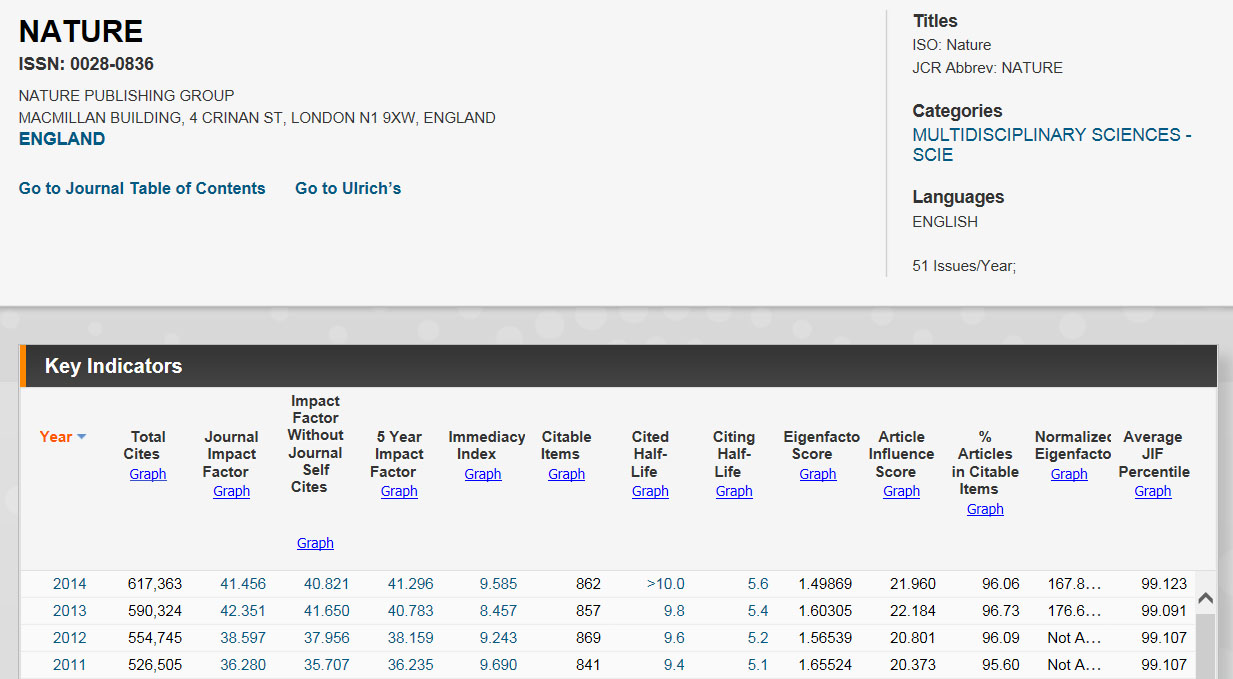
  • You will then get an option to click on the Journal Profile, which includes the Impact Factor:
 Find the highest impact journal in your area

  • Click on Journals By Rank
  • Click 'Select Category' and select the subject area closet to your own:
  • Click Submit at the bottom of the screen.
  • Scroll down to see the journals within the category, ranked by impact factor:


You can also find our further information from this short video tutorial from Thomson Reuters


If you are using impact factor to help you choose where to publish then watch our video on 
Journal Impact Factors - use and misuse

Popular posts from this blog

Oral history at the University of Leicester

As announced recently, we will be hosting the CILIP Local Studies conference on July 9, which will be themed around oral history and sound collections. We choose oral history thanks to the University's, and the region's, strengths in this area. East Midlands Oral History Archive (EMOHA) Based in the Centre for Urban History,  East Midlands Oral History Archive is one of the largest regional collections of its kind. It was o riginally funded by the Heritage Lottery Fund to establish an archive of oral history recordings for Leicestershire & Rutland. It includes the collections of the Leicester Oral History Archive, the Mantle archive from North West Leicestershire, the Community History archive of Leicester City Libraries, the Market Harborough Museum collection, and the sound archive of BBC Radio Leicester, along with smaller collections donated by local organisations or individuals. Following a major digitisation project, the Library's Special Coll...

Research Elevenses in July

Throughout July we are running a series of 30 minute talks on key issues for Leicester researchers. There’s no need to book - just turn up! If you are off-campus you can join in live via Adobe Connect. Simply click the link and choose ‘Enter as Guest’ on the day. A recording of each session will be made available after the event. 6th July Discovering the University’s unique archives 11am, Fielding Johnson, Ogden Lewis Seminar Room 3 This session will explain what archives are and give an overview of the archives held by the University of Leicester library.  Participants will also be introduced to the online archive catalogue and effective ways to locate archival sources to support teaching and research. Join the webinar 13th July Publishing your own Open Access journal 11am, David Wilson Library Seminar Room, Floor 1 The Library has developed an online publishing platform (Open Journals System) that enables researchers at Leicester to set up and run their o...

You can now export multiple citations from Google Scholar

You can now export multiple citations from Google Scholar if you have a Google Account. Go to Google Scholar and sign into your Google Account. Conduct your search. Click on the Star icon (Save) under each reference you want to export. Then click on My Library in the top, right of the screen. Select all the references and click on the Export option: Click the Star/Save Icon Choose Export Option To Export into EndNote Choose the EndNote option. Open the EndNote file that is created. The references should automatically import into EndNote. To Export into RefWorks Choose the RefMan option. Save the RIS file that is created. Login to your RefWorks account. Click on the plus (+) button. Choose Import References. Add the RIS file you just saved. Set the file import option to RIS - Reference Manager. Click import and your references will be imported. --- Good Practice Tip: Always check that all the reference information you need has been...